2026-05-08
How to use Cursor from your phone
Use Mobile Relay to steer Cursor on your Mac or Windows desktop from iPhone or Android: install the desktop app, sign in, add your API key, then open the PWA.
If you already use Cursor on a Mac or Windows PC, you do not need a second setup on your phone. Mobile Relay connects your phone to that same machine so you can keep working when you step away from the desk.
What you need first
- Cursor installed and working on your desktop (this is where agents run, where your repos live, and where your environment is already correct).
- A Mobile Relay account and the desktop relay app from the download page.
Nothing here replaces Cursor on the desktop. Your phone is the remote control; the desktop does the heavy work.
How to get started (same steps as the homepage)
The landing page spells this out in three steps. Here is the short version:
- Install the desktop relay on the computer that has your code (Windows or macOS). It runs the local server and the encrypted tunnel back to your phone.
- Sign in with the same account you use on this site, then add your Cursor API key in the desktop app settings (same idea as the homepage: one account, keys stay on the machine you trust).
- Open Mobile Relay on your phone — in the browser or add the PWA to your home screen — and use Agent, Diff, and Preview against that desktop.
For buttons and links, follow the “Up and running in three steps” section on the home page: Download, Sign in, Open PWA.
What you can do from your phone
The product is built around three tabs on mobile:
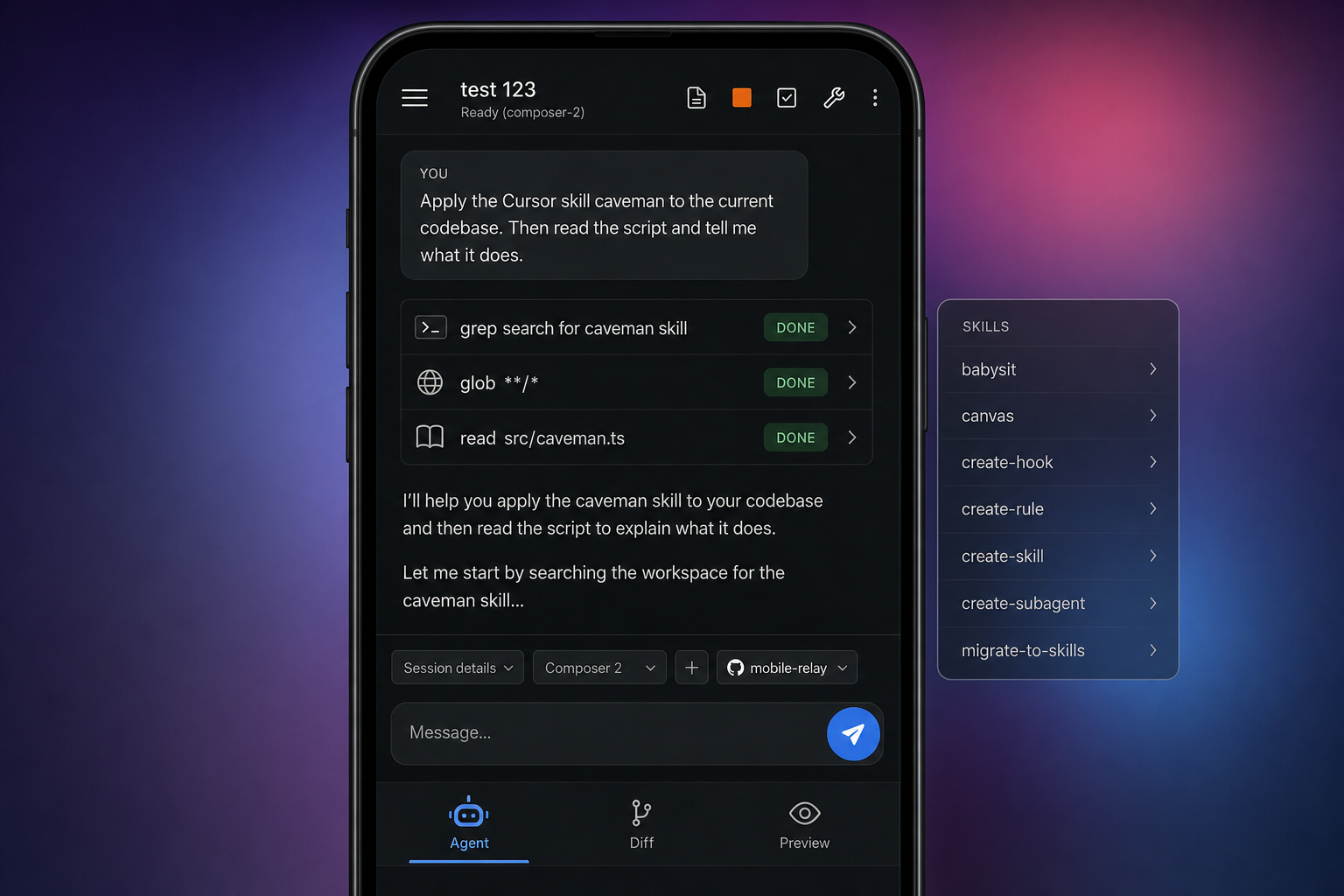
- Agent — Chat with and steer Cursor-powered agents against the workspace on your desktop, where your SDK and credentials already live.
- Diff — Read git-style diffs streamed from your machine, step through revisions, and review changes from the diff tab without opening the laptop.
- Preview — Open localhost through the tunnel and use your app in a live browser tab — same dev server, no reinstalling dependencies on the phone.
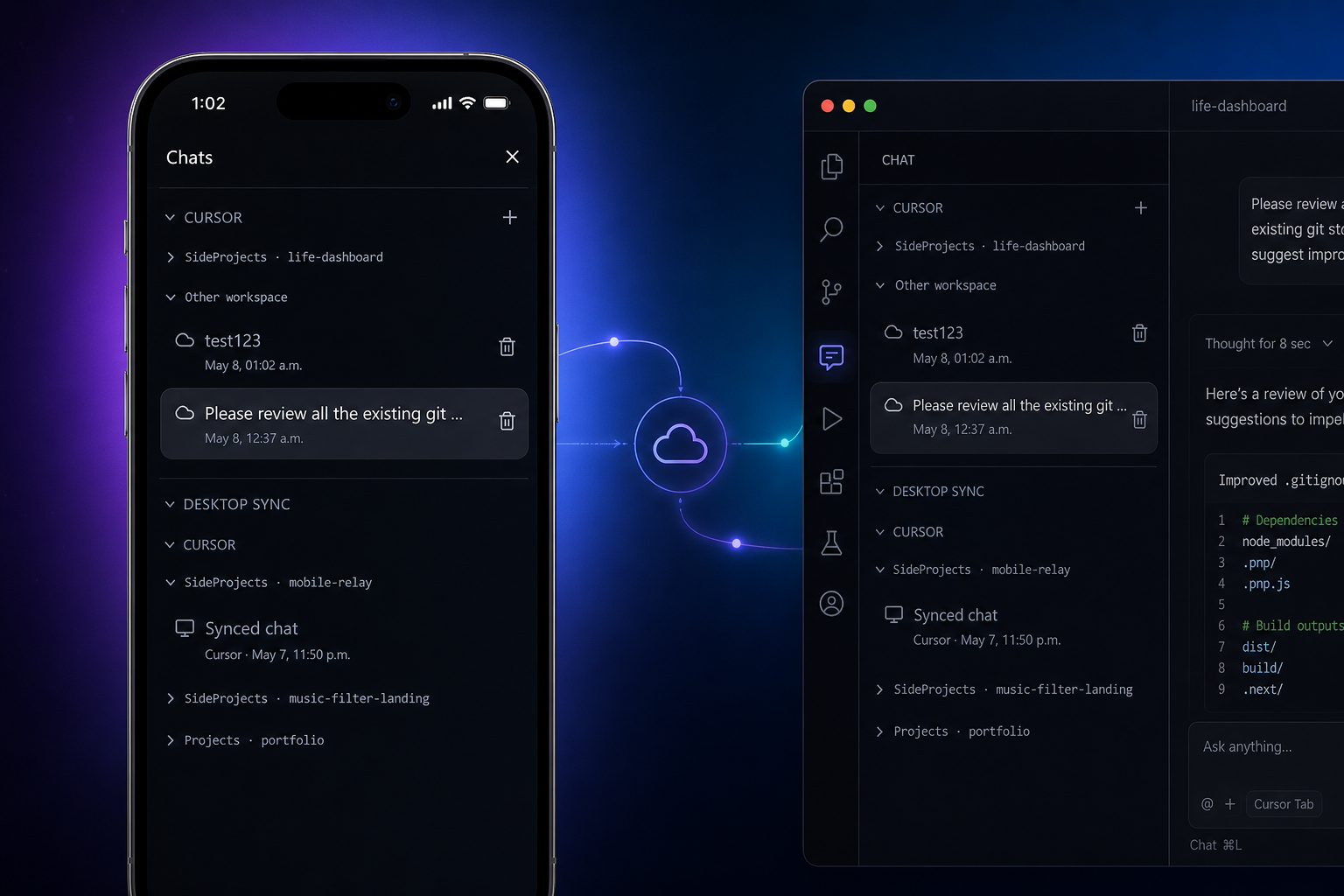
The landing features section goes deeper: multi-session and multi-repo workflows, live preview and project control, git actions, running local tests, automatic repo detection, end-to-end encryption, and push notifications when an agent run finishes. Below are two screenshots from that section so you can see how it looks in practice.
Plain-English summary
Install Cursor on the desktop like you already do. Install Mobile Relay on that same desktop, sign in, paste your Cursor API key, then open the Mobile Relay web app or PWA on your phone. You are not cloning repos on the phone or moving secrets there — you are remotely using the setup you already trust.
Related: Download the desktop app · Open the app · Pricing